Tuesday, April 26, 2011

InDesign


Today we will begin day #2 of InDesign. Our goal for today is to create a double spread (2 page layout) about a topic of your choosing (skateboarding, golf, cakes, flowers, trucks, etc). We will be using images from the web and filler text. Your spread should contain the following:

  • 5+ pictures/images - one dominant image and 4+ supporting images.
  • 1+ story
  • 5+ captions
  • 1+ heading
  • folio
  • page numbers
  • interesting background design/layout
images will come from the web. use File>Place to put them into image boxes, not the "image placer" as it has some bugs right now.

Thursday, April 14, 2011

OPTIONS!

two options:

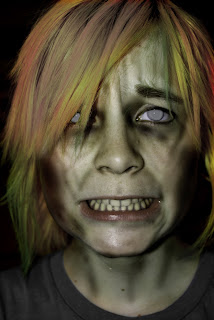
ZOMBIES!
http://www.imarc.net/communique/42-freakish_zombie_in_11_steps


LIGHTSABERS!!!!

Time to geek out! Star Wars style!


Get a Picture!!

Take a picture of yourself in an action scene. We have pipes that will act as the basis for your sabers. Import your best pic.

Make an new Layer

Hold CTRL+SHIFT+N.
Or go to LAYER-NEW-LAYER.
That will bring up the New Layer window.
Call it like Lightsaber or thing.
You can choose your color for the layer.
Hit OK and your layer will be displayed in the layer box

Brushes

On the toolbox press the brush button.
Go to BRUSH box on top where brush is displayed.
Click on the brush, that will bring an box with layers.
Select the brush with outside blur.
If the brush isnt there, choose basic brushes from the preset menu.

Lets Begin!!

Once brush selected, click on the bottom of the stick and hold SHIFT.
Go to the top of the stick ( in my case outside the image,) and click again.
You see you have an nice blured core!
You can let go shift.

Effects

Now double click your layer.
In my case; Lightsaber.
That will bring out the layer style menu.
Click on Outer Glow and you will see a little yellow colored box.
Click on that box and choose your color.
I will do Green.

Then go to the Opacity Line and make that 100%.
Your saber will be brighter.

Go to the Contour box displayed on the bottom of the window.
select the half round one.
That will make your saber even more Blurry.

Done!

Hit OK and you are done!!!!
This effect will make your Pic's more reality!

SOME TIPS;

--If you want more sabers from the same color, dont make new layers.
Just repeat step 4!

--Try to make your sabers the same diameter as the stick.

Monday, April 11, 2011

Sounds!

One requirement for your banner is sounds! You have a couple options, you can either insert 2+ sound effects, or you may insert an entire song.

To insert music/audio simply drag the mp3/wav file from you library to a new layer. Make a keyframe where you want the audio to start.

sound effects can be found here:

http://www.pacdv.com/sounds/index.html

http://www.partnersinrhyme.com/pir/PIRsfx.shtml

right click to download the audio file

music:
http://www.danosongs.com/

or use garage band to create your own loop track!

Thursday, April 7, 2011

Movie Clips

These are symbols that have their own timeline, so they can loop, or play for a longer/shorter duration of time if desired:

http://www.kirupa.com/developer/flashcs3/movieclips_classes_AS3_pg1.htm

Tuesday, April 5, 2011

Banner Examples

http://www.bannersnack.com/examples/flash-headers-intros.html#2

http://www.bestdesignservices.com/flash-banners.html

you need to fist choose a product. Then consider colors that are appropriate for your product. Next find your hook, tag line, or slogan. Last, come up with your charge to the viewer, what do you want them to do, buy, see, eat, etc.
Your Flash task is to create an advertising banner for use on a web site. Flash is often used in advertising as animation is entertaining and eye catching.

Requirements:
  • 180 x 900 px document
  • 100+ frames long (looped)
  • 1+ movie clip
  • 1+ motion guide
  • 12+ layers
  • 2+ sounds/sound effects


'


Monday, April 4, 2011

Mag Covers Due TODAY!

please turn in your TEEN magazine cover today. As a .jpeg file to the staff server.

For extra credit you may make a Tabloid cover! Use the LIQUIFY tool for fun edits!